

Imagine your client logos appear on five pages of your website: the homepage, the About page, the Services page, a case-study page and a landing page. Then you sign a new client. Now you have to open all five pages, add the new logo five times, and hope you didn’t miss one.
A month later, a client asks you to remove their logo. You do the same thing again, in reverse. One page always slips through, and the old logo stays live for weeks.
There is an easier way. With Logo Carousel WordPress plugin, you can build one reusable logo carousel, save it as a template, and show it anywhere on your site. When you update the template, every page that uses it updates too.
How Do I Reuse the Same Logo Section on Many Pages?
Quick answer: In Logo Carousel, create a Saved Template, add a logo block to it and publish it. Then place the template on any page, post or widget area with its shortcode, or with the Logo Carousel element in your page builder. Edit the template once, and every page that shows it updates automatically.
Key Takeaways
- One template, many pages. A Saved Template holds one logo layout that you can show anywhere.
- One update. Change the template once, and every page that uses it shows the new version.
- Works almost anywhere. Use the shortcode in pages, posts and widget areas, or the Logo Carousel element in Elementor, Divi, WPBakery, Beaver Builder, Bricks and Oxygen.
- Any layout. Save a Carousel, Marquee, Grid, List or Table block as a template.
What Is a Reusable Logo Carousel?
A reusable logo carousel is a logo section you design once and place on many pages. Every copy is linked to one source, so it stays in sync.
Think of it like a newsletter sign-up box that appears across your site. You don’t rebuild that box on every page. You create it once and reuse it. Logo sections deserve the same treatment, because client lists, partner logos and sponsor logos change often.
Why Copying Logo Sections Between Pages Causes Problems
Copying and pasting a logo block onto each page feels quick at first, but it creates extra work later:
- Slow updates. Every new or removed logo means editing every page by hand.
- Mistakes. It’s easy to miss one page and leave an old logo live.
- Messy designs. Small changes on one page (a different speed, spacing or logo order) make your site look inconsistent.
- Lost track. After a while, nobody remembers which pages show logos at all.
For agencies that manage many client sites, these small problems add up fast.
How Saved Templates Work in Logo Carousel
Saved Templates is one of the new features in Logo Carousel v5.0.0. It works in three simple steps:
- You build the logo section once inside a template, using the normal block editor.
- The template gets its own shortcode, such as
. - Every page that shows the shortcode displays the template’s latest version when a visitor loads the page.
Because the pages only point to the template, there is just one place to edit. That’s what keeps everything in sync.
How to Create a Reusable Logo Carousel (Step by Step)
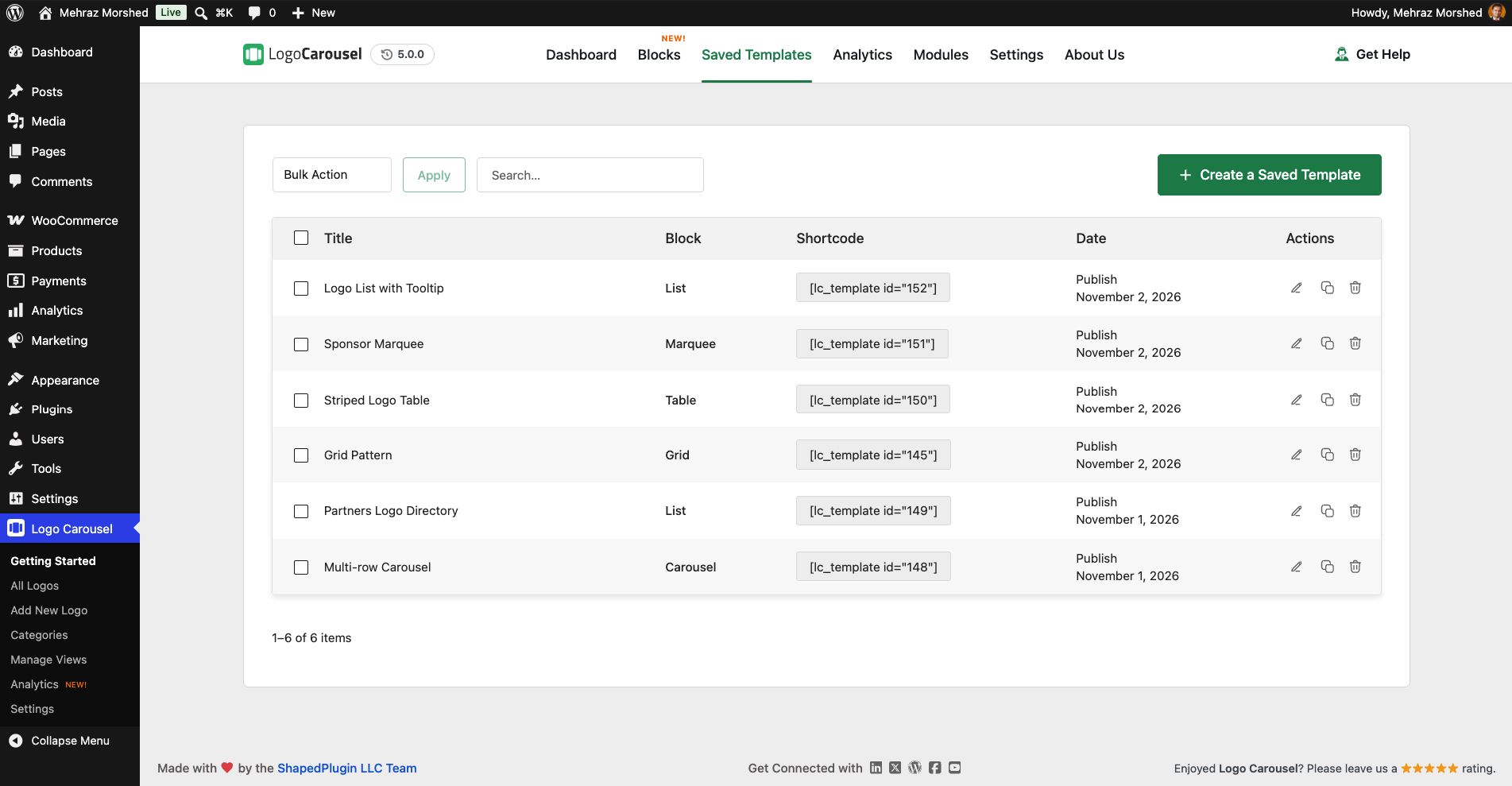
- Open the dashboard. In your WordPress admin, go to the Logo Carousel menu and open the Getting Started dashboard.
- Go to Saved Templates. Open the Saved Templates tab and click Create a Saved Template.
- Add a logo block. The block editor opens. Add a Carousel, Marquee, Grid, List or Table block, then pick your logos.
- Design it. Set the layout, speed, spacing and style the way you want them on every page.
- Name and publish it. Give the template a clear name, such as “Client logos – main”, and click Publish.
- Copy the shortcode. Back in the Saved Templates tab, copy the template’s shortcode.
- Place it anywhere. Paste the shortcode into a Shortcode block on each page, or add the Logo Carousel element in your page builder and pick the template from the list.
That’s it. Your logo section now lives in one place.
Where You Can Use Your Logo Template
You can show a Saved Template in many parts of your site:
- Pages and posts: paste the shortcode into a Shortcode block.
- Widget areas: add the shortcode to a sidebar or footer widget.
- Page builders: Logo Carousel v5.0.0 adds an element for Elementor, Divi (including Divi 5), WPBakery, Beaver Builder, Bricks and Oxygen. Add the element and choose your saved template.
This is especially helpful if your team uses more than one editor. A designer can build the template in the block editor, and a marketer can drop it into an Elementor page without touching the design.
How to Update Logos on Every Page at Once
Say you just signed a new client.
- Open the Saved Templates tab.
- Edit the template.
- Add the new logo.
- Click Update.
Every page that uses the template now shows the new logo. You don’t need to open those pages at all.
Tip: if your site uses a caching plugin, clear the cache after you update a template. Otherwise, some visitors may see the old version for a while.
Best Practices for Reusable Logo Templates
- Use clear names. “Sponsors – 2026 conference” is easier to find than “Template 3”.
- Duplicate for variations. Need a smaller version for the sidebar? Duplicate the template and adjust the copy, instead of starting over.
- Keep drafts private. Visitors only see published templates. Logged-in editors can still preview a draft while they work on it.
- Plan for time-limited logos. A template holds a normal Logo Carousel block, so block options such as Scheduling can be part of it. That’s handy for sponsors whose deal ends on a set date.
- Check where it’s used. The dashboard’s Logo Showcase Placements table lists where your blocks, shortcodes and saved templates appear, so you can see every page a template touches.
- Style with care. Developers can target each template with its own CSS class, lcpro-template-{ID}, for small design tweaks.
Real-World Uses for a Reusable Logo Carousel
- Agencies: show the same “Brands we work with” strip on the homepage, service pages and proposals.
- SaaS companies: reuse one “Trusted by” marquee on every landing page.
- Event organizers: keep one sponsor section in sync across the event homepage, schedule page and ticket page.
- Associations and networks: display member or partner logos in the footer and on a directory page at the same time.
Frequently Asked Questions
Q. What is a reusable logo carousel in WordPress?
It’s a logo section you create once and show on many pages. In Logo Carousel, you build it as a Saved Template and place it with a shortcode or page-builder element.
Q. How do I show the same logo carousel on multiple pages?
Create a Saved Template, publish it, and add its shortcode to each page. You can also use the Logo Carousel element in a supported page builder.
Q. If I edit the template, will every page update?
Yes. Pages load the template’s latest published version, so one edit updates every page that uses it. If you use page caching, clear the cache after editing.
Q. Can I use a saved logo template in Elementor or Divi?
Yes. Logo Carousel v5.0.0 adds an element for Elementor, Divi (including Divi 5), WPBakery, Beaver Builder, Bricks and Oxygen. Each one displays a saved template you choose.
Q. Why isn’t my template showing on the page?
Check that the template is published, because visitors don’t see drafts. Also check that the Saved Templates module is turned on in the dashboard; when it’s off, the shortcode shows nothing.
Q. Do my old shortcodes still work?
Yes. Classic shortcode views keep working in v5.0.0. You can move to Saved Templates whenever you’re ready.
Design Once, Update Once, Show Everywhere
Managing client, partner or sponsor logos page by page wastes time and invites mistakes. A reusable logo carousel fixes that. With Saved Templates in Logo Carousel v5.0.0, you build your logo section once, place it wherever you need it, and keep every page in sync with a single edit.
Ready to stop updating logos five times over? Get Logo Carousel and create your first Saved Template today.
Want the full picture of what’s new? Read the Logo Carousel v5.0.0 release article.
Leave a Reply
You must be logged in to post a comment.